User Guide
Everything you need to get productive with Atlas from day one.
What is Atlas?
Lunify Atlas is your personal assistant: you ask for things in plain language, from the web panel or straight from WhatsApp. Atlas looks up contacts, sends messages, reads and writes your email, books calendar events, keeps tasks and reminders, and researches the web for you.
No commands to memorise — “remind Ahmet about tomorrow’s meeting” is enough.
Your first 5 minutes
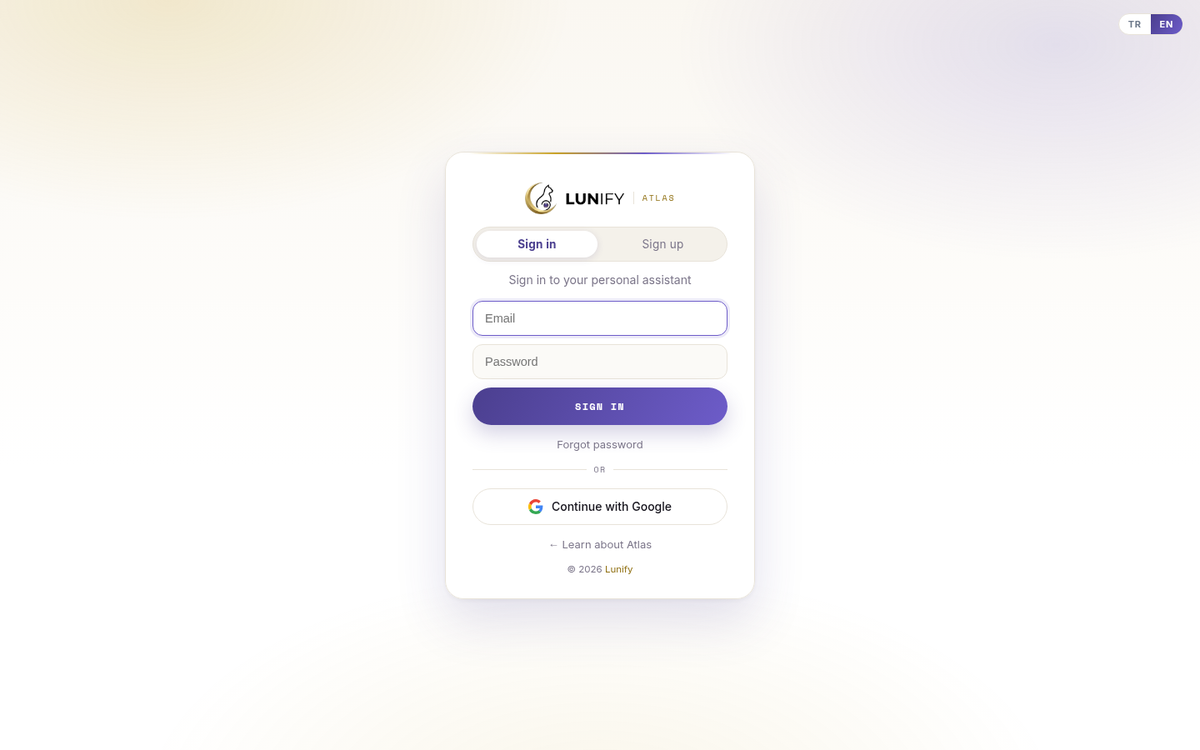
- Sign in — email/password or “Continue with Google”.
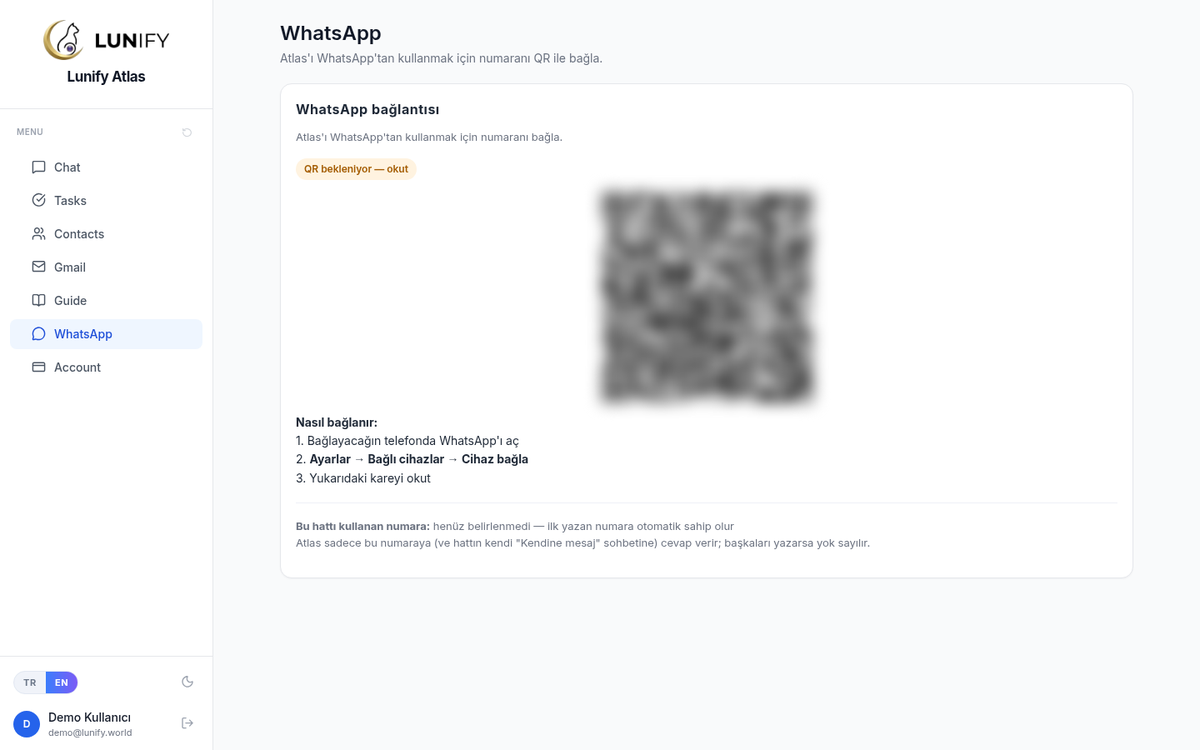
- Connect WhatsApp — WhatsApp in the sidebar → on your phone Settings → Linked devices → Link a device → scan the QR code.
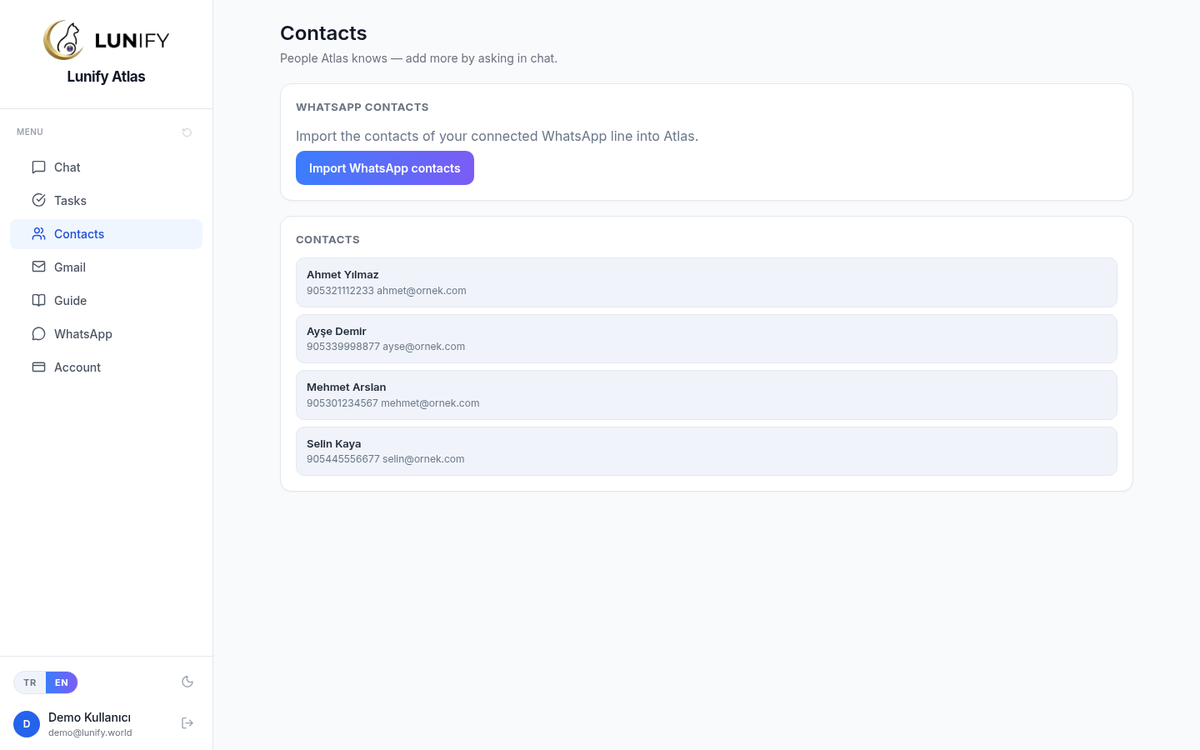
- Import contacts — on the Contacts page click “Import WhatsApp contacts”, so you can say “message Ahmet” without typing numbers.
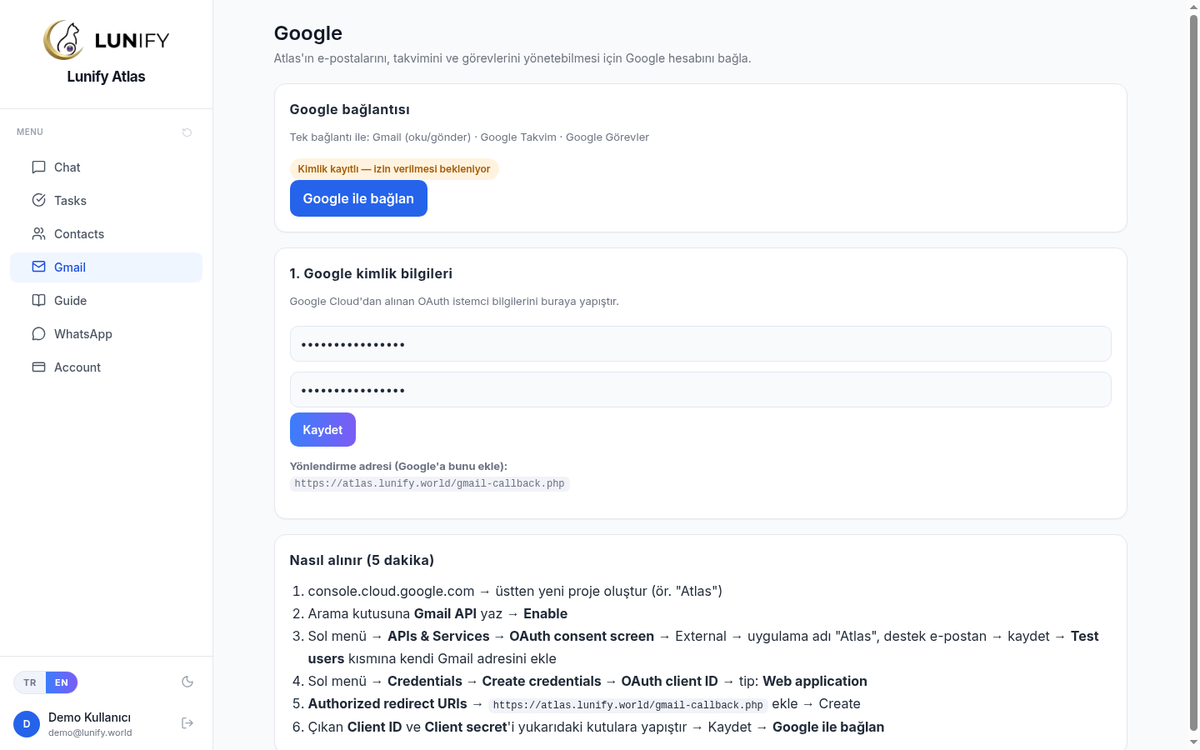
- Connect Gmail/Calendar/Tasks — “Connect with Google” on the Gmail page. One consent enables all three.
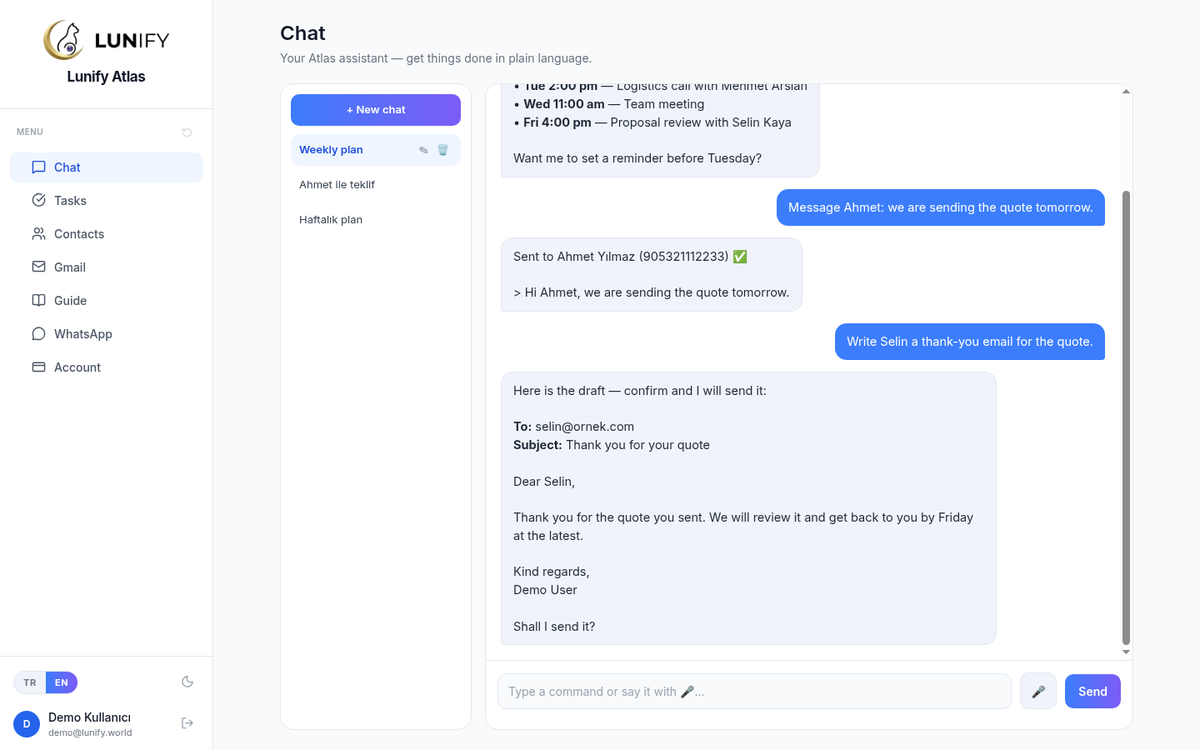
- Ask something — in chat: “What meetings do I have this week?”
The chat screen
- New chat — start a separate thread per topic; previous chats stay in the list.
- Microphone 🎤 — dictate instead of typing.
- Transparency — the tools Atlas used appear under each reply (email sent, contact found, …).
- Language — the TR/EN switch changes the whole panel and Atlas’ reply language.
- Theme — moon/sun icon toggles dark mode.
- Menu order — drag sidebar items to save your own order.
Using Atlas from WhatsApp
The most practical part: you never have to open the panel — just message Atlas on WhatsApp.
- After linking your line, anything you write to your own number (Message yourself) goes to Atlas.
- Security: only the line owner can give commands. Messages from anyone else are silently ignored; the owner can be reset on the WhatsApp page.
- Sending: “tell Ayşe about the 3 pm appointment” — Atlas sends it directly from your own line.
- If the session drops (phone offline for a long time), scan the QR code again.
Contacts
- Import your WhatsApp contacts in one click — duplicates are skipped.
- You can also say “add Mehmet Yılmaz, number 0532…” in chat.
- If a person is not in Atlas, it also looks them up in the linked WhatsApp line’s contacts.
- If several names match, Atlas asks which one — no message goes to the wrong person.
Gmail, Calendar and Tasks
- Reading: “summarise today’s important emails”, “open the last email from Ali”.
- Writing: “write Ali a thank-you email for the quote.” Atlas shows the draft first (to / subject / body) and only sends after you confirm. Ask for edits and you get a new draft.
- Calendar: “add a meeting with Mehmet Tuesday 2 pm”, “what’s on this week”, “delete Friday’s meeting”.
- Tasks: “add a task to invoice by Thursday”, “my open tasks”, “mark X as done”.
You can disconnect any time on the Gmail page; Atlas loses access instantly.
Memory and reminders
- Long-term memory: tell it “my company is ABV Group, always write emails formally” and it applies that later.
- Forget: “forget that” removes a stored fact.
- Search history: “what price did we discuss last month?” — it searches older chats.
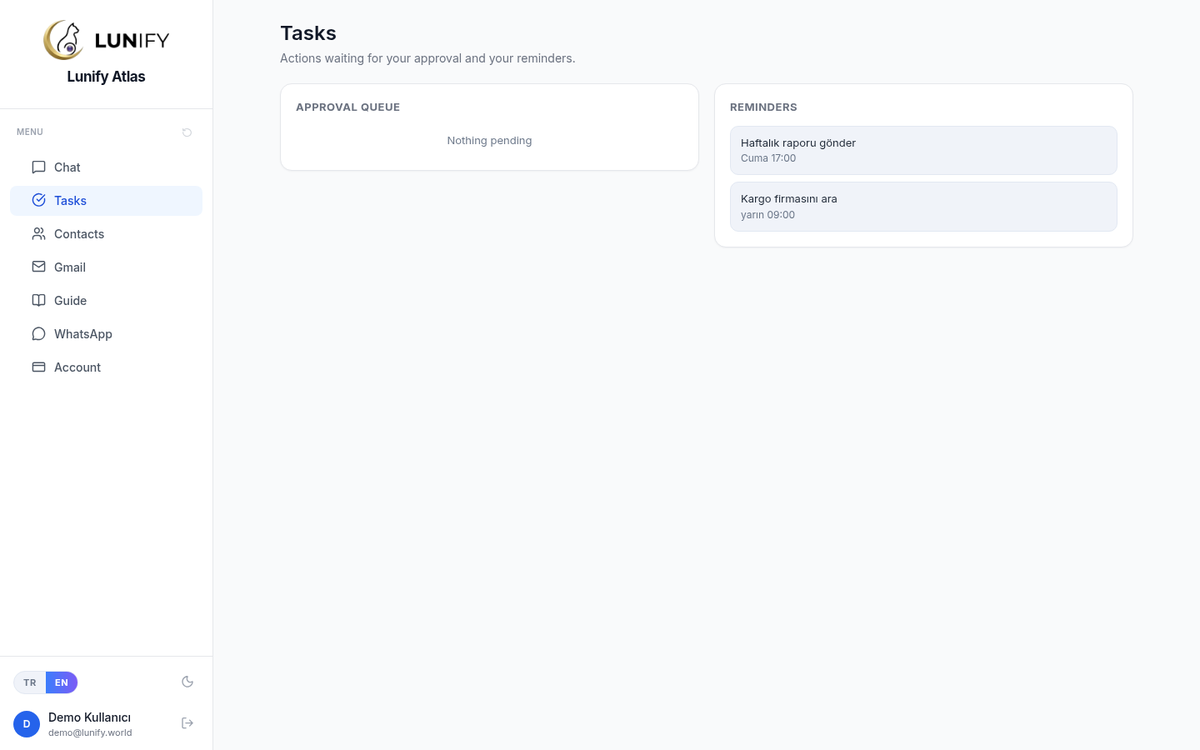
- Reminders: “remind me tomorrow at 9” → shown on the Tasks page.
- Calls: Atlas cannot dial; it finds and gives you the number.
Example requests
Plan and usage
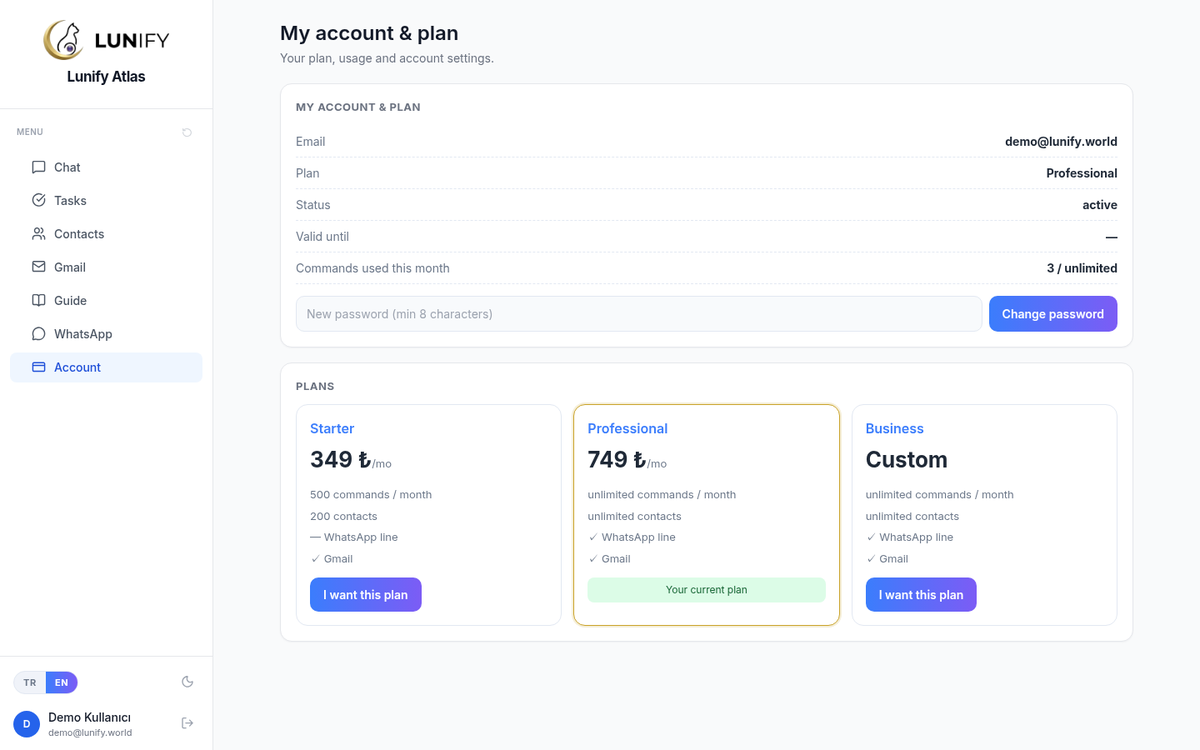
The Account page shows your plan, this month’s usage and what’s left. You can request an upgrade there and the team will get in touch.
- Change your password on the Account page (min. 8 characters).
- Forgot it? The “Forgot password” link on the sign-in screen emails a reset link, valid for 1 hour.
FAQ / troubleshooting
- WhatsApp says “not connected” — rescan the QR code; your phone needs to be online.
- Contact import found nothing — wait a couple of minutes after linking, then import again.
- Email was not sent — Gmail is probably not connected. Atlas always tells you when a send fails; it never pretends.
- Wrong recipient — Atlas states the recipient before sending and always shows email drafts first.
- Your data — chats, contacts and memory belong to your account only; other users cannot see them.
Stuck? Just ask Atlas in chat.